
If a customer contacts you with an updated delivery address or requests a faster delivery option after placing an order, you can modify these details directly within your Papello seller dashboard.
Step-by-Step Guide
1. Locate the Order
Log in to your Papello seller dashboard.
Go to Orders in the main navigation menu.
Find and click on the order you wish to update.
2. Open the Edit Screen
On the order details page, find the Ship To section.
Click Edit Address. A pop-up modal will appear on your screen.
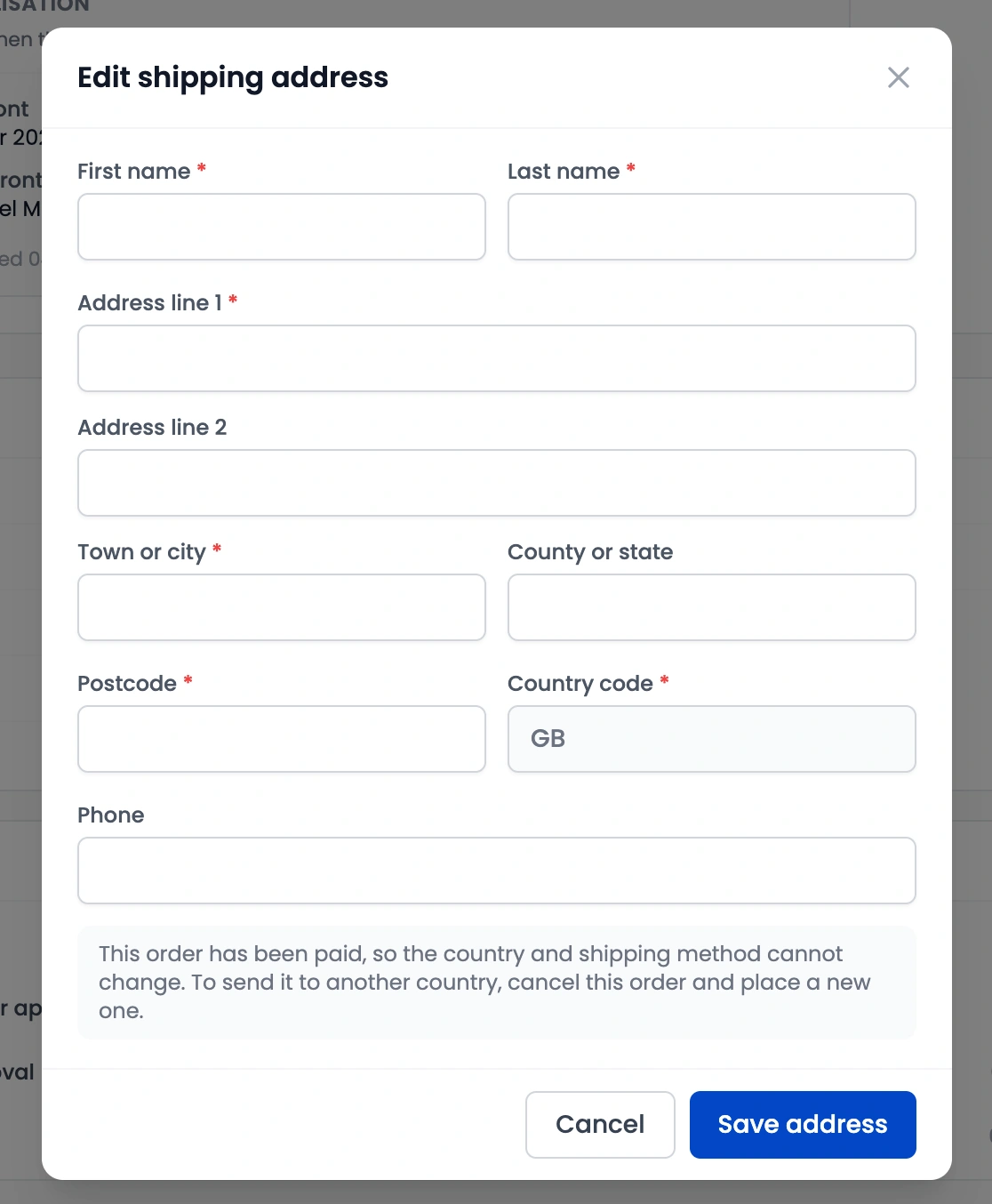
3. Update Details and Save
To Change the Delivery Address: Enter the updated recipient name, address lines, town/city, postcode, and country.
To Change the Shipping Method: Select the new shipping service from the dropdown menu (if eligible).
Click Save to apply your updates.
Understanding Cut-Off Times & Eligibility
To keep order fulfilment fast and accurate, different rules apply depending on the order status and what you are updating:
Updating the Delivery Address
When can you edit? You can update the delivery address for any order status up until the point it is marked as shipped.
Supported Order Statuses: Even if your order is currently listed as Processing, Printed, or Packaged, you can still update the address details as long as the shipping label has not been dispatched.
Updating the Shipping Method
When can you edit? You can only change the shipping service for orders that have not yet been released to production.
Important Note: Orders set to release immediately or those that have already passed their timed hold delay cannot have their shipping method changed once production begins.