Step-by-Step Guide
1. Go to Design Studio Templates
Log in to your Papello dashboard.
In the left-hand navigation, head to Design Studio and open the Templates page.
2. Trigger the Copy Action
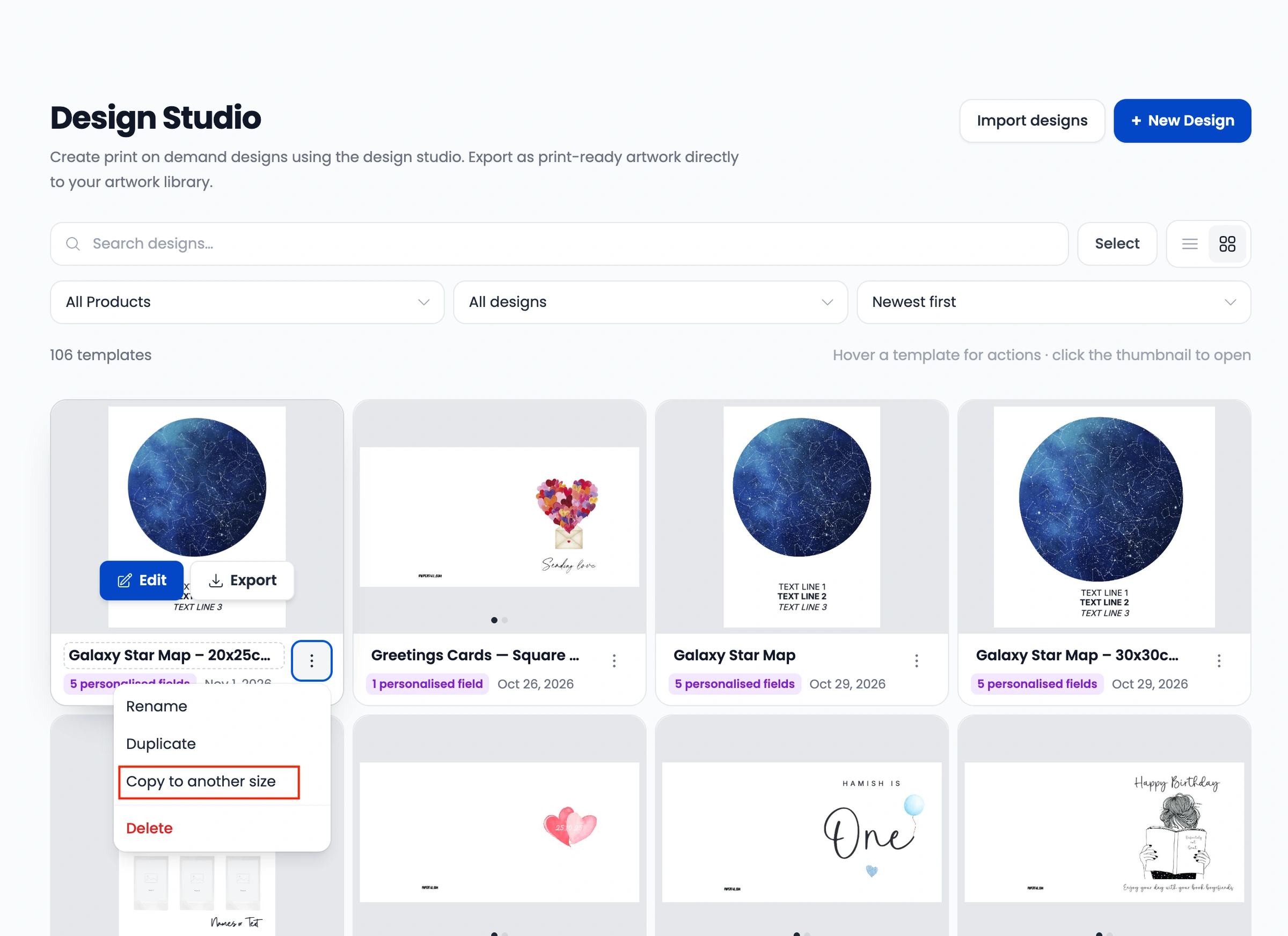
Find the design template you want to duplicate.
Click the three-dot menu icon (
...) on the template card.Select Copy to another size from the dropdown menu.
3. Select Your Target Size
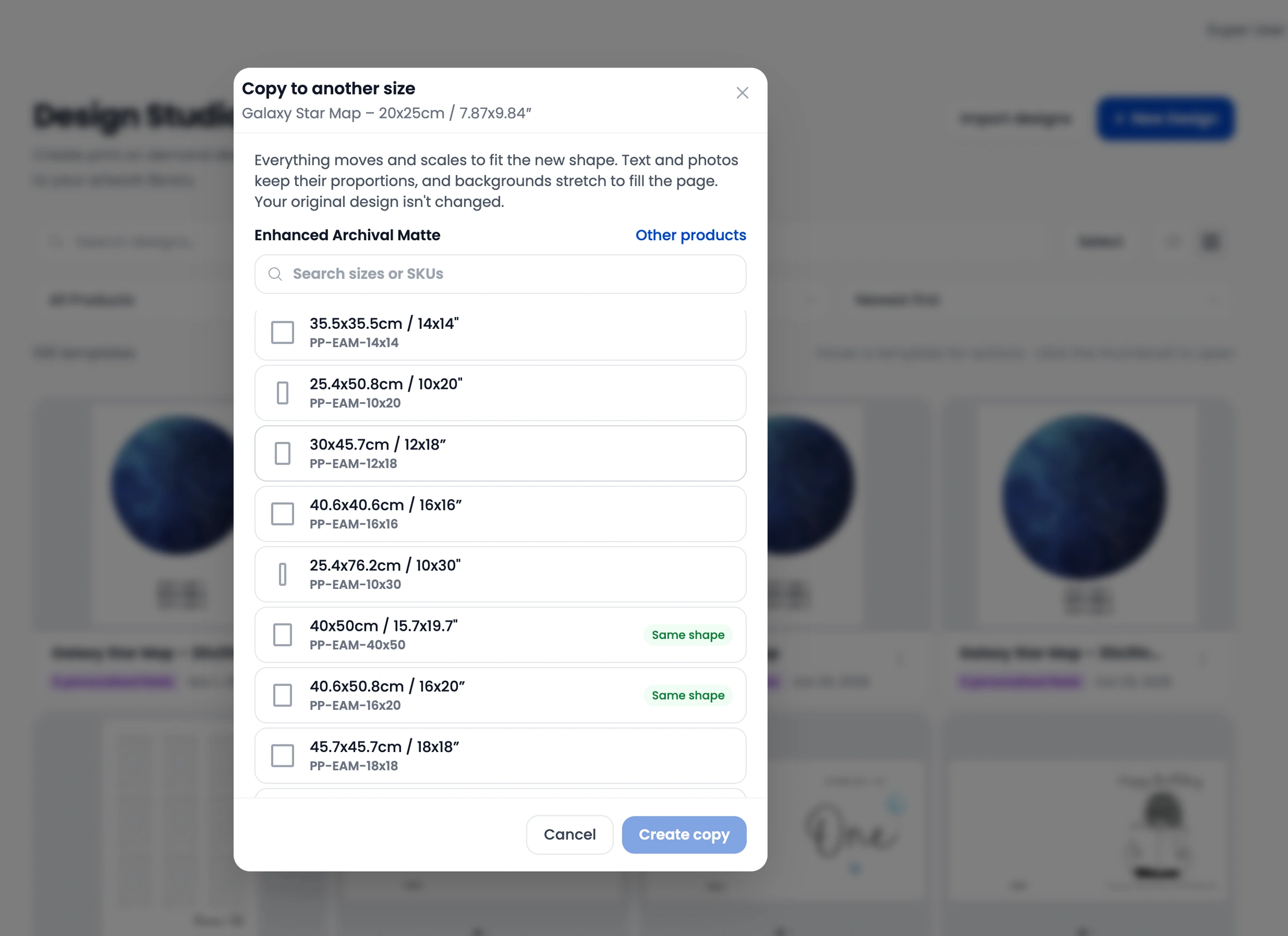
A pop-up modal will appear displaying all available product dimensions and aspect ratios.
Choose the new size you want to generate.
Confirm your selection to generate the duplicated canvas.
4. Review Layout and Save
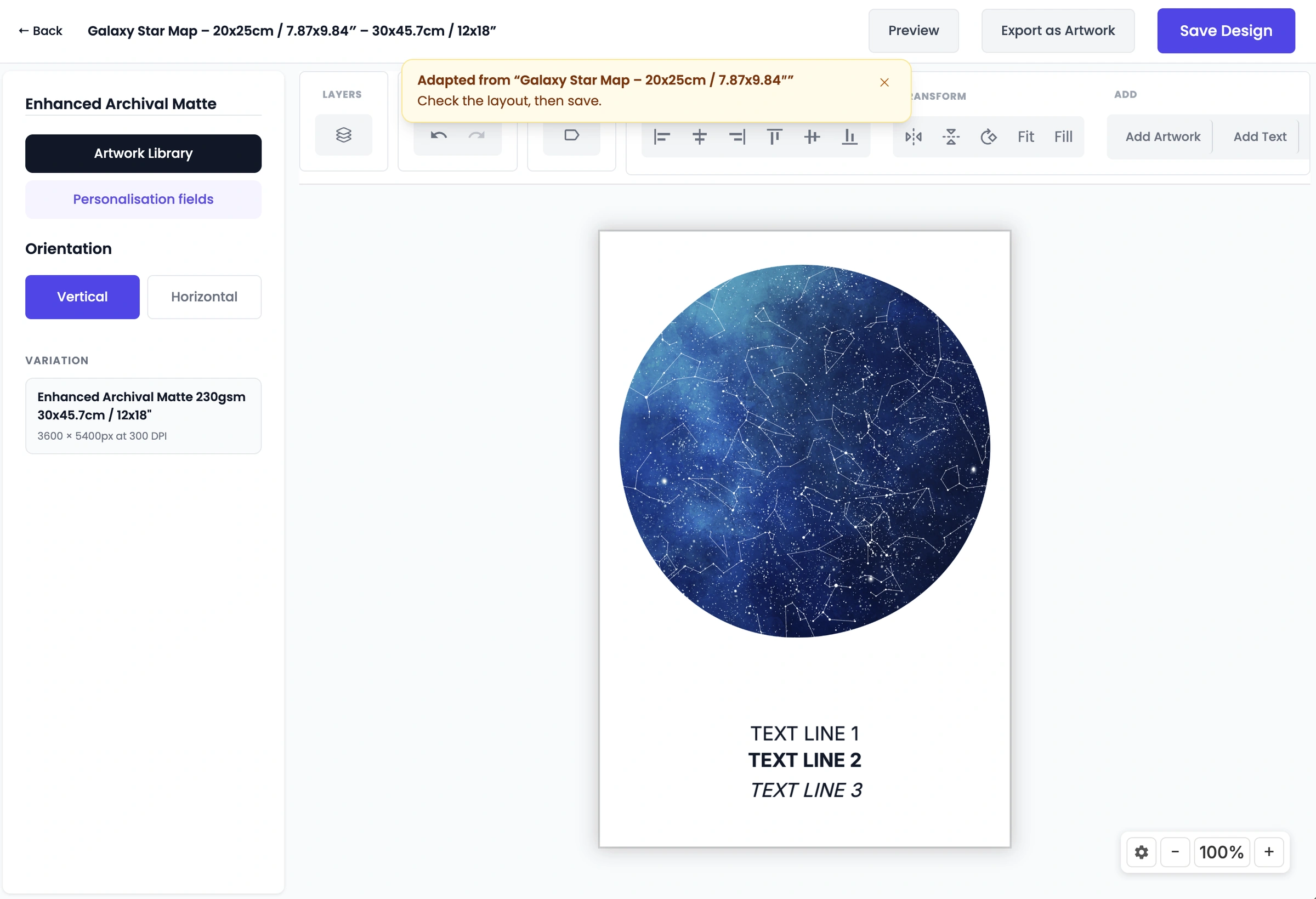
The Design Studio will open the newly generated copy in your chosen dimensions.
Text boxes, image upload fields, and graphic elements will automatically reposition to adapt to the new canvas size.
Inspect your artwork to verify that margins, bleed areas, and text alignments look balanced. Make any necessary positioning adjustments.
Click Save Design in the top-right corner to save the new version to your templates library.