
If you already have active listings on eBay, you do not need to recreate them. You can easily map your existing eBay products to Papello print templates.
Step-by-Step Automation Guide
1. Your eBay Listings
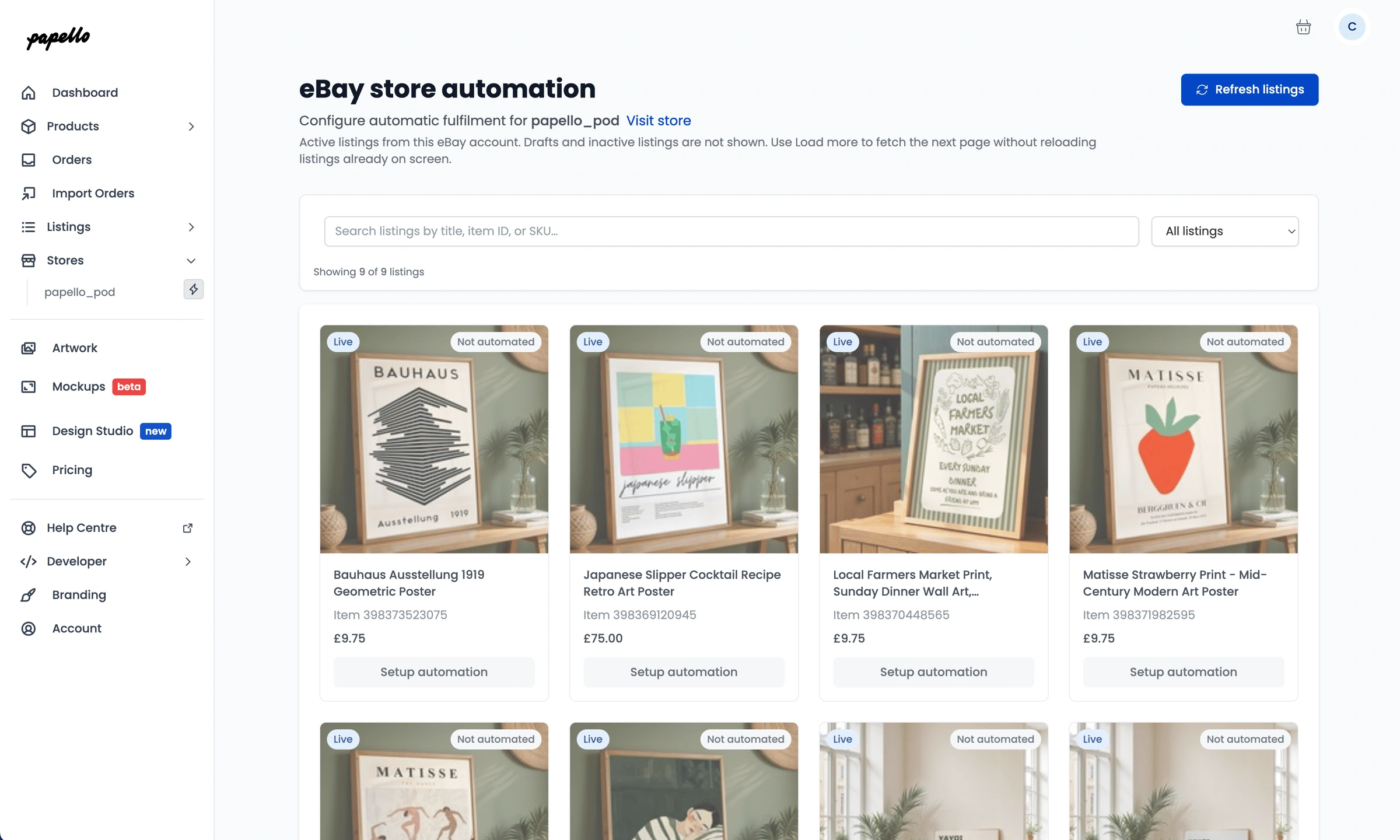
Log in to your Papello dashboard and go to Stores > Automate Store
Listings from your eBay store will be displayed, find the listing your wish to automate and click Setup Automation.
2. Map eBay Variations to Papello Products
Find the eBay listing you want to automate and click Automate.
For each variation (e.g. A4, A3, Framed), click Select Product and choose the matching Papello product template.
3. Assign Artwork
Click Select Artwork next to each mapped variation.
Select the corresponding file from your Artwork Library. The Artwork Checker will verify aspect ratio and resolution.
4. Configure Personalisation Settings (Optional)
If the listing is for a custom item:
Toggle Enable In-App Personalisation.
Map your design template questions (e.g. Photo Upload, Custom Text, Option Selection).
Choose whether to Auto-Fulfil upon buyer proof approval or set to Manual Review.
5. Enable and Save
Toggle Enable Automation to ON and click Save Product Mapping.