
Connecting your Wix store to Papello enables fully automated order fulfilment. Once linked, orders placed on your Wix site are automatically sent to our production line, printed to exact specifications, and shipped directly to your customer.
Prerequisites
Before starting, ensure you have:
An active Papello seller account.
An active Wix store with administrator access.
Step-by-Step Setup Guide
1. Navigate to Integrations in Papello
Log in to your Papello dashboard and go to Settings > Stores.
2. Select Wix and Authorise
Click the Connect Wix button. You will be redirected to the Wix App Market login page.

3. Grant Permissions
Log in to your Wix account if prompted, select the store you wish to connect, and click Agree & Add to authorise the Papello app. This gives Papello the required permissions to:
Read incoming orders for fulfilment.
Update order statuses and push tracking numbers back to your Wix store.
Sync product listings created on Papello
4. Confirm Connection
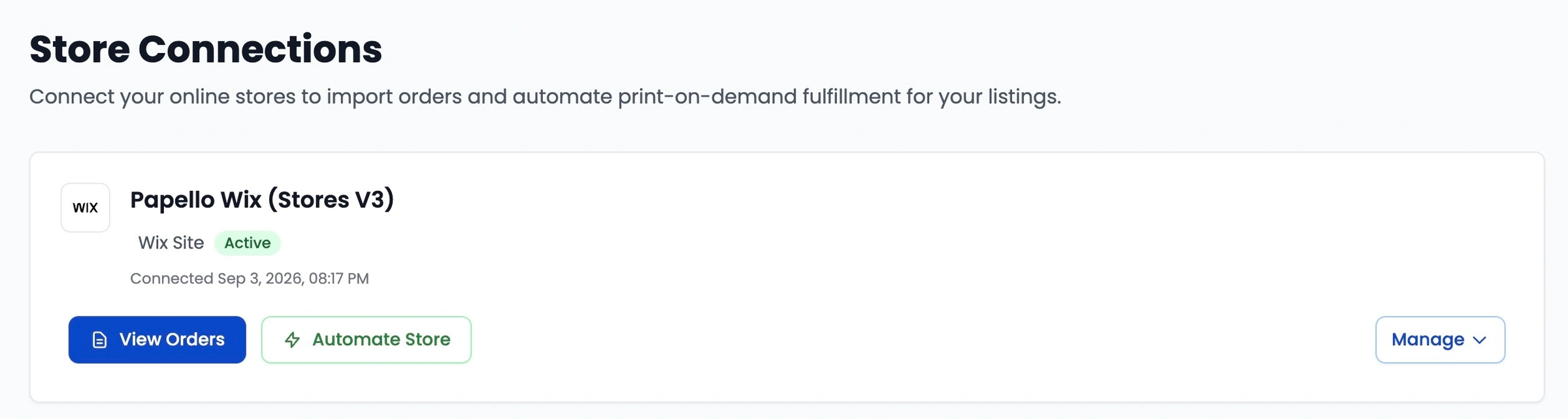
Once authorised, you will be redirected back to your Papello dashboard. You should see a green Active status next to your Wix store name.
What Happens Next?
Product Mapping: You can now link existing Wix products to Papello production templates or publish new products directly to your Wix store.
Order Automation: When a customer buys a linked product on your Wix site, the order automatically flows into your Papello dashboard for production.
Tracking Sync: As soon as we dispatch the package, Papello updates the order status in Wix and attaches the tracking number automatically, triggering your store's dispatch email to customers.