
Adding limited editions and printed digital signatures to your print-on-demand artwork increases value, urgency, and brand authenticity. With Papello, you can set fixed edition limits that automatically sync across all your connected sales channels, ensuring you never over-sell a limited run.
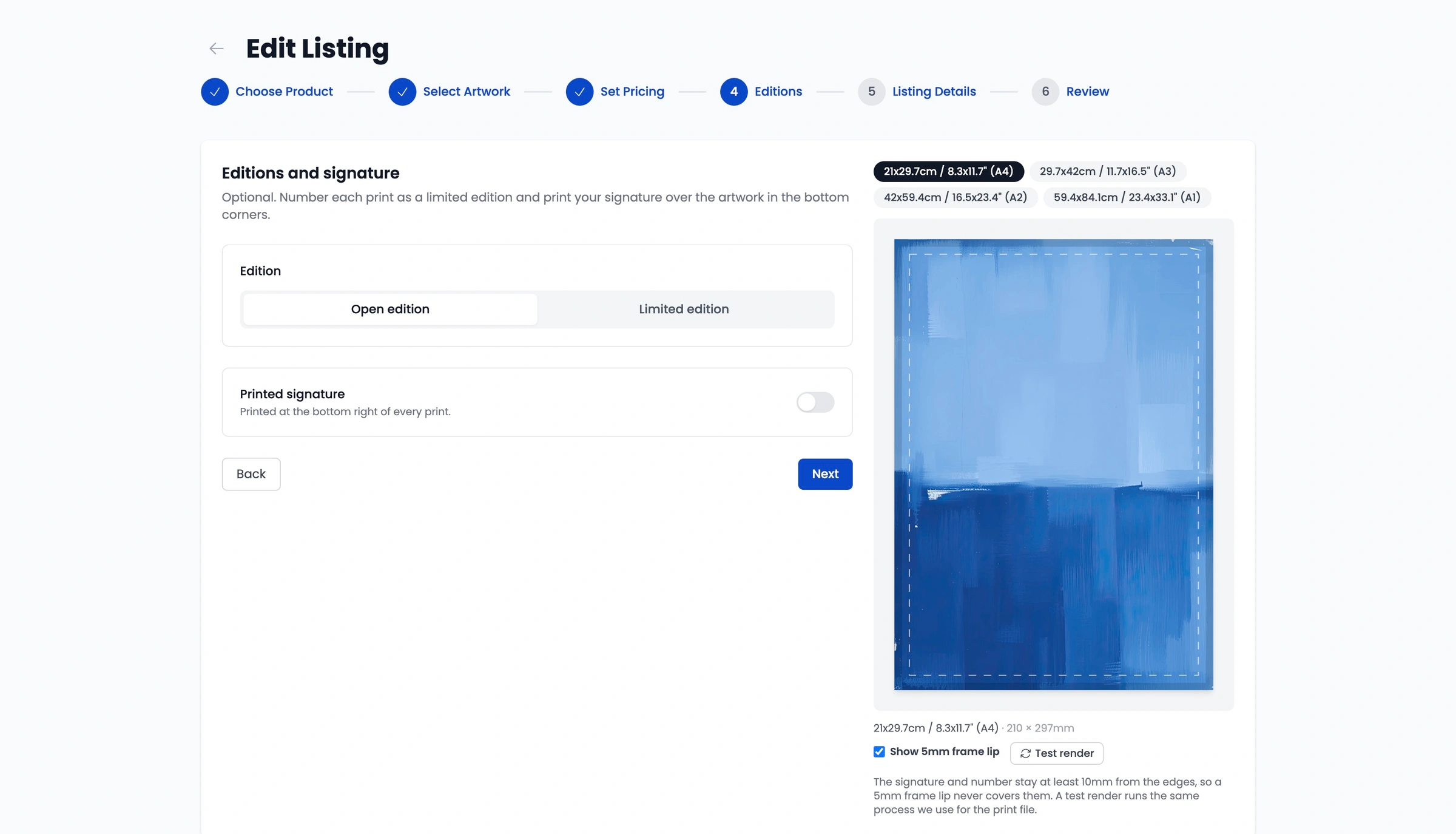
Step 1: Accessing the "Editions" Step in the Listing Creator
Whether you are creating a new product listing or editing an existing one in your Papello dashboard:
Go to Listings in the main menu and click Create New Listing (or select Edit Listing on an existing item).
Navigate to the Editions step in the setup flow.
Choose your edition type:
Open Edition: Unlimited quantities available for sale.
Limited Edition: Fixed, capped print run across all stores and variants.
Step 2: Adding a Printed Signature (Open & Limited Editions)
You can add a digital signature to be printed directly onto the bottom-right corner of every print in your listing.
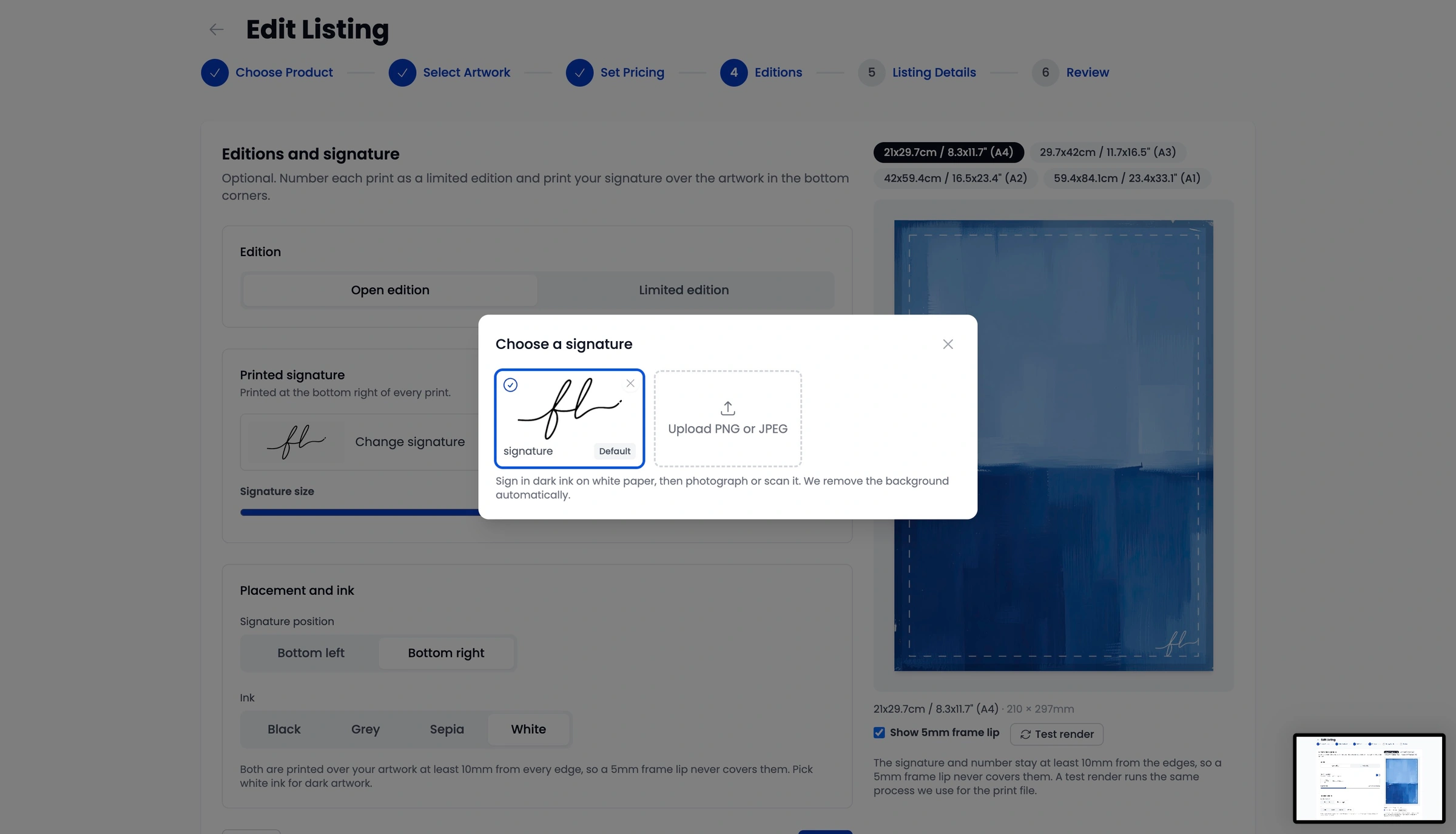
How to Prepare and Upload Your Signature
Sign your name clearly using dark ink on clean white paper.
Take a clear photograph or high-resolution scan of your signature.
Upload the file during the Editions step. Papello will automatically remove the white background.
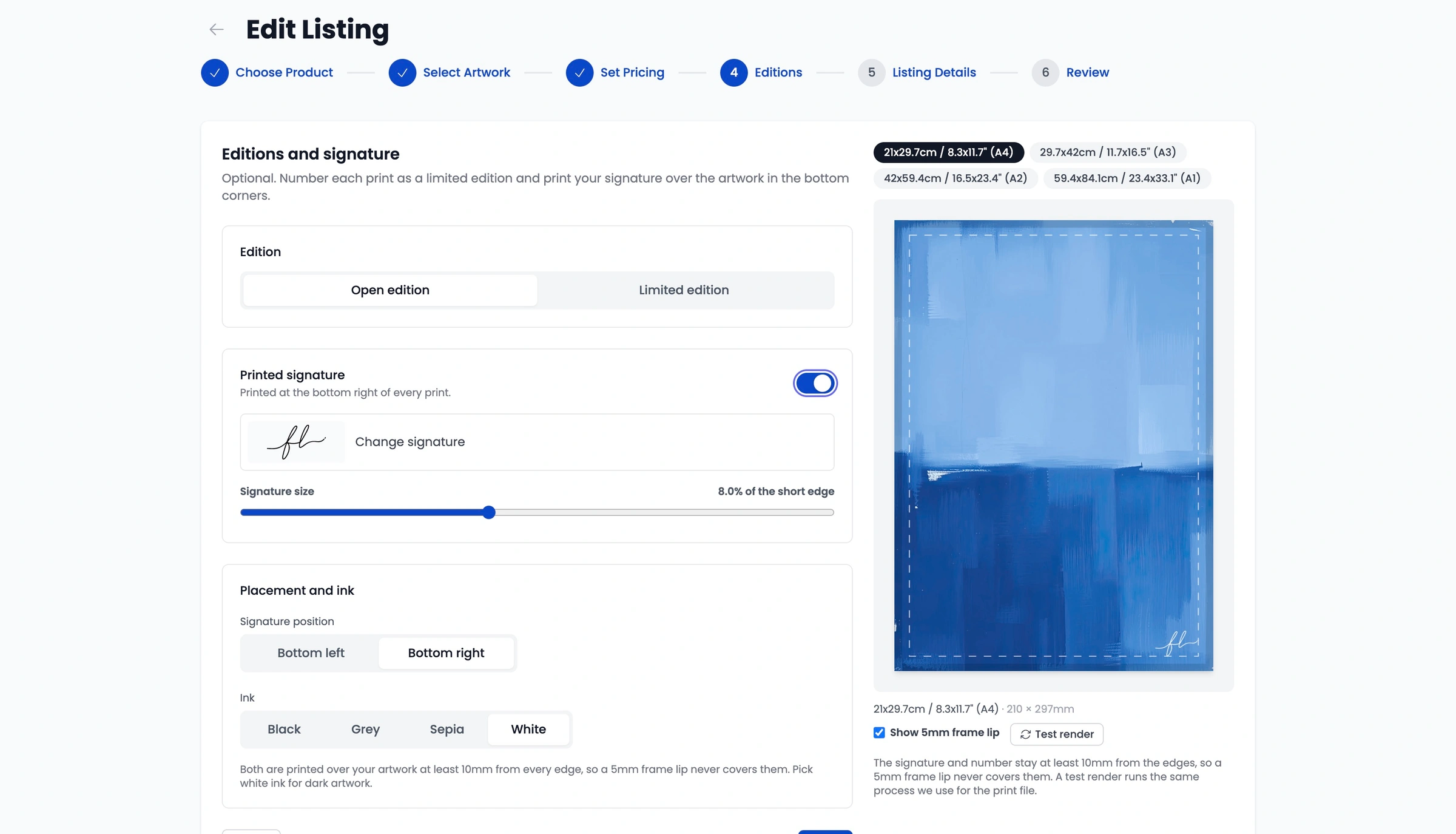
Customising Your Printed Signature
Once uploaded, a live preview will display your signature across every product size:
Placement: Position your signature on the bottom Left or Right.
Colour Options: Select Black, Grey, Sepia, or White (ideal for dark artwork).
Scaling: Use the Signature Size Slider while referencing the visual preview to adjust the exact size.
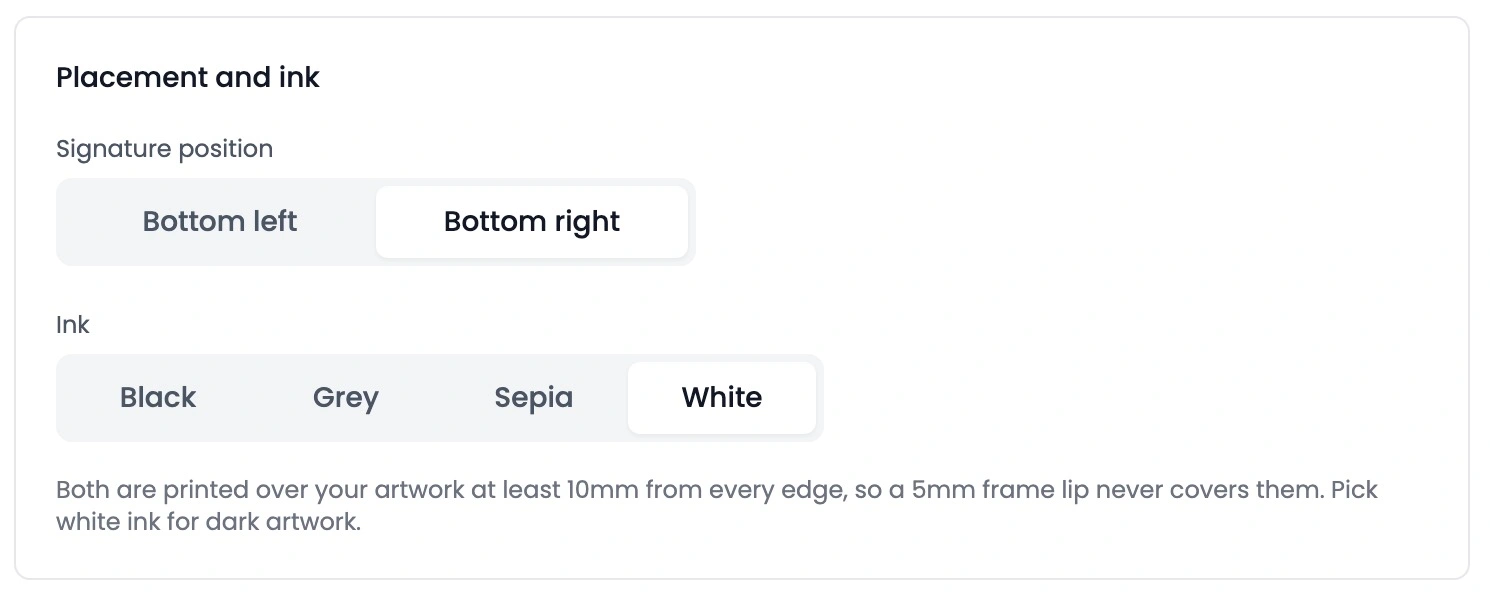
Frame Safety Margins: All signatures are automatically printed at least 10mm from every edge of the print. This guarantees that standard 5mm frame lips or mounts will never overlap or obscure your signature.
Step 3: Setting Up a Limited Edition
When you toggle your listing setting to Limited Edition, you can define your exact production limit (e.g. 50 prints total).
How Limited Edition Stock Works Across Variants & Stores
Shared Across Variants: A single limited edition pool is shared by all sizes and finishes under that listing. For example, an un-framed A3 print and a framed A2 print will both deduct numbers from the same 1 to 50 edition limit.
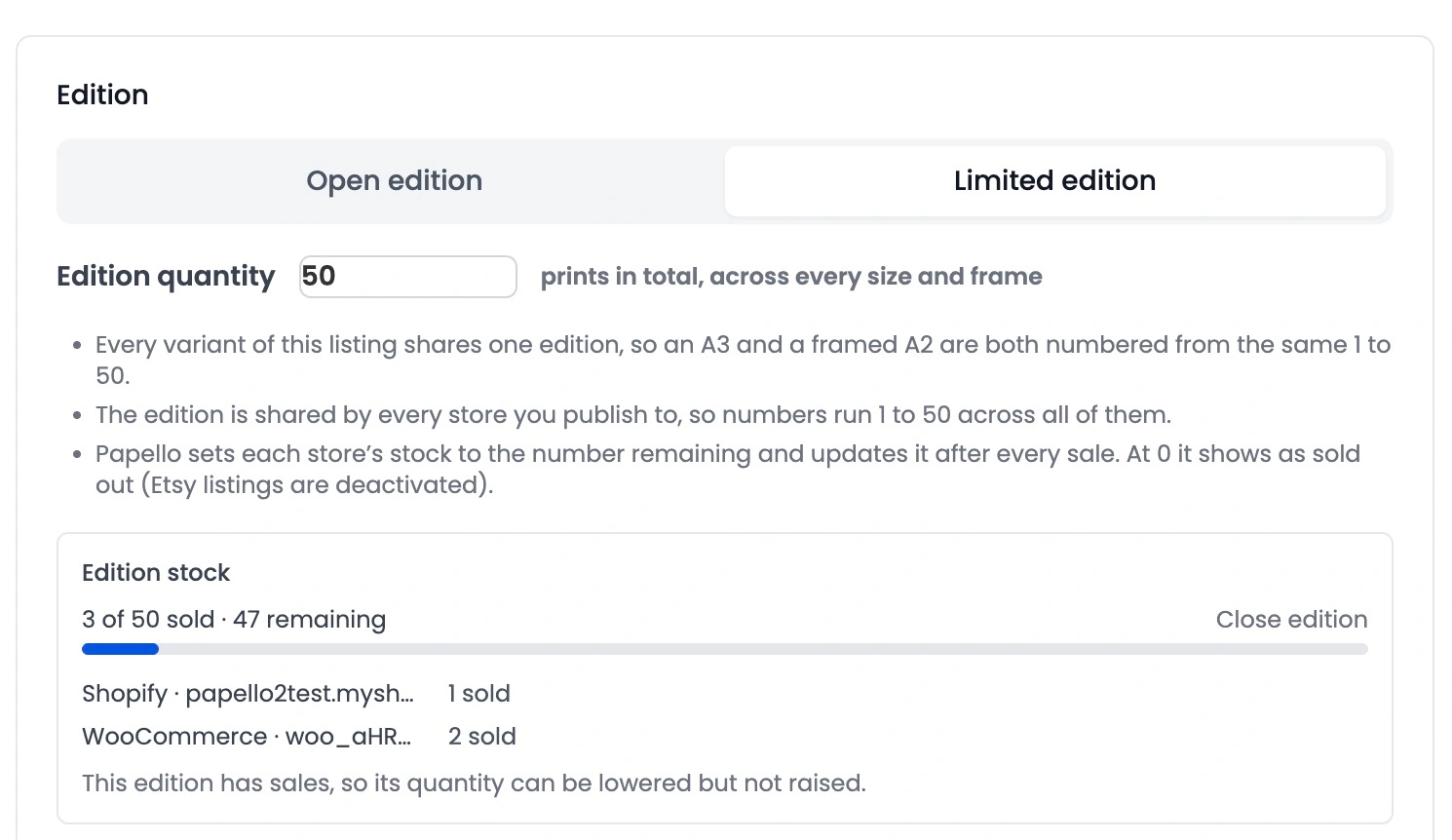
Shared Across Stores: If you publish a Limited Edition listing to both Etsy and Shopify, sold quantities sync dynamically across both platforms. Selling Edition #1 on Etsy automatically drops the available stock on Shopify to 49 across all variations.
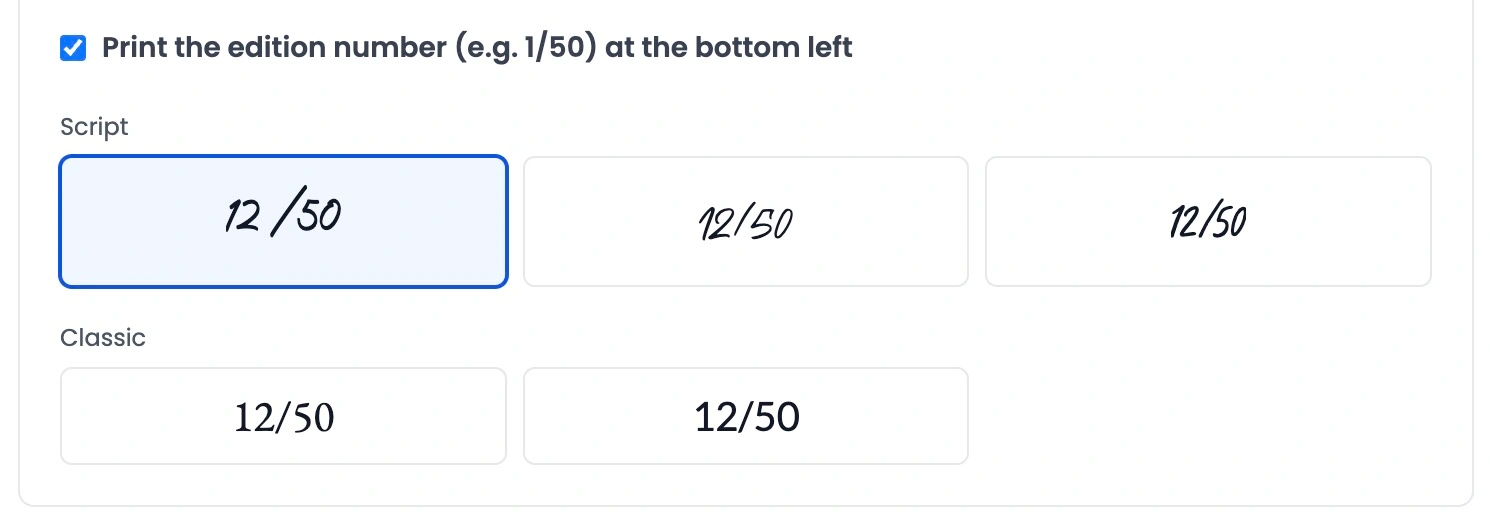
Font Selection: Select from 5 numbering font styles to match the aesthetic and tone of your artwork.
Automatic Sold-Out Status: Papello constantly updates stock levels on your connected marketplaces. When the remaining stock hits zero, the product updates to Sold Out (on Etsy, the listing is automatically deactivated).
How to Close an Edition Early
If you wish to retire an edition before it reaches its total sales limit:
Go to Listings and select the product.
Click Edit Listing and navigate to the Editions tab.
Click Close Edition.
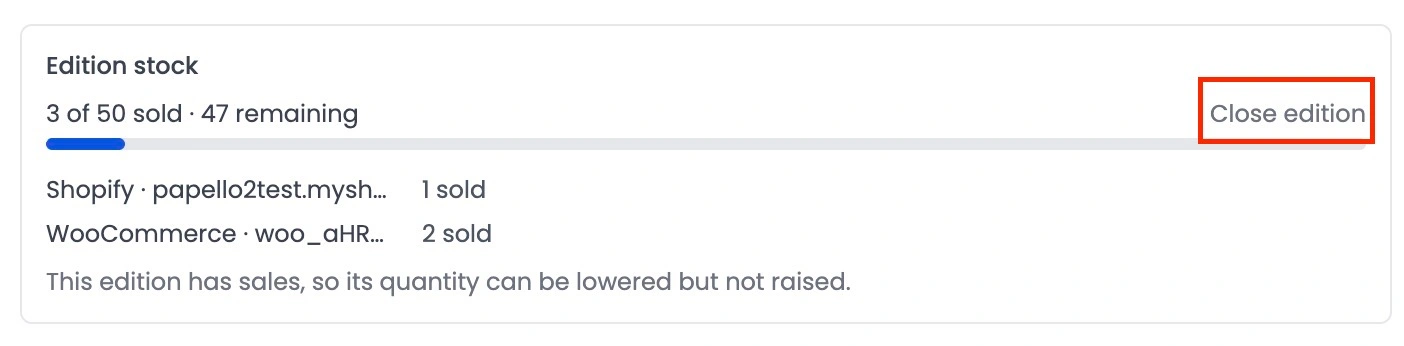
Result: Papello will immediately update the stock levels on all connected stores (Etsy, Shopify, Wix, eBay) to 0 or deactivate the live listing, preventing any further sales.
How to Manually Sync Edition Stock
There are two primary reasons you may need to force a manual stock sync:
You published a listing on Papello that had already sold a portion of its run elsewhere prior to importing.
Stock quantities were accidentally altered by hand directly inside your connected marketplace settings (e.g. inside Etsy or Shopify Admin).
Steps to Manually Sync Stock:
Go to your Listings page on Papello.
Click on the listing thumbnail to open the listing manager.
Scroll down to the Edition & Signature section.
Click Sync stock now.
This action immediately recalculates your true remaining edition numbers and pushes the exact updated quantities across all of your connected stores.