
Step-by-Step Guide
1. Go to Stores
Log in to your Papello dashboard and navigate to Stores.
2. Open Store Automation Page
Find your connected store in the list and click Automate Store.

3. Select Your Product
Browse or search for the product listing you want to update, then click Edit Automation.
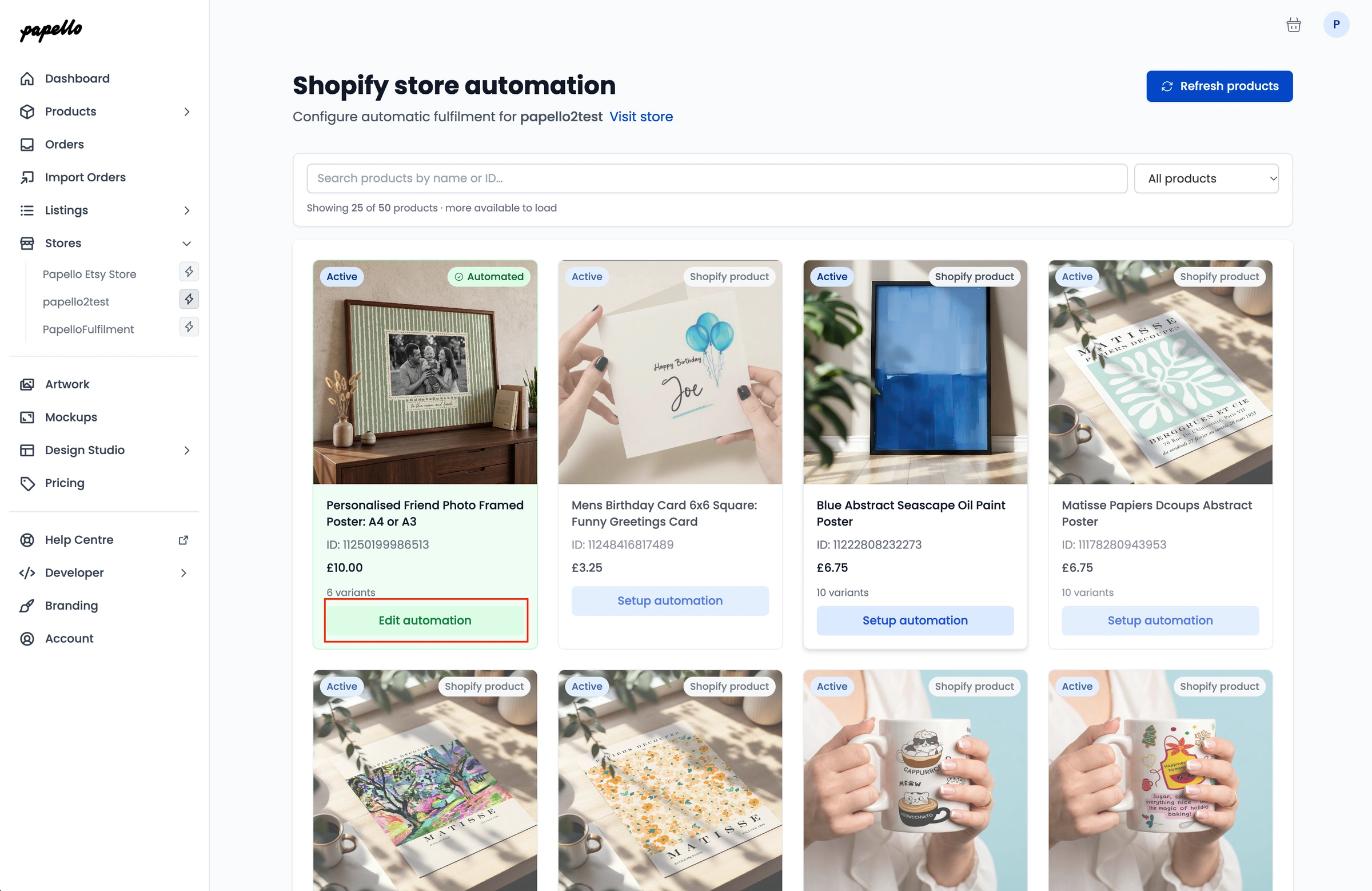
4. Update Your Configuration Options
In the edit screen, you can adjust any of the following settings:
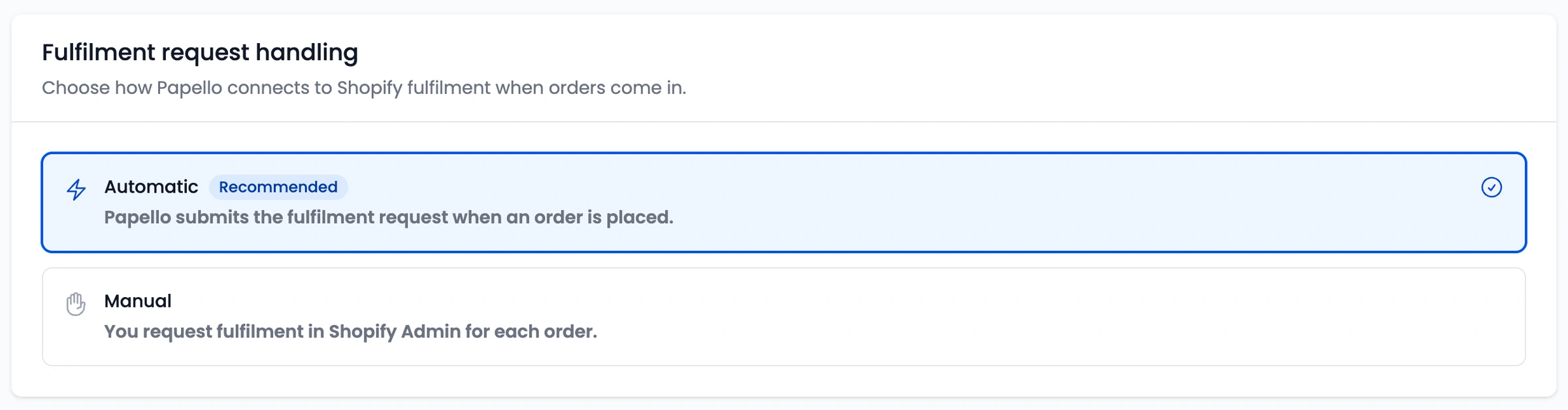
Fulfilment Request Handling: Switch between Automatic (Papello submits and processes the fulfilment request automatically when an order is placed) or Manual (you manually request fulfilment inside your store admin for each order).
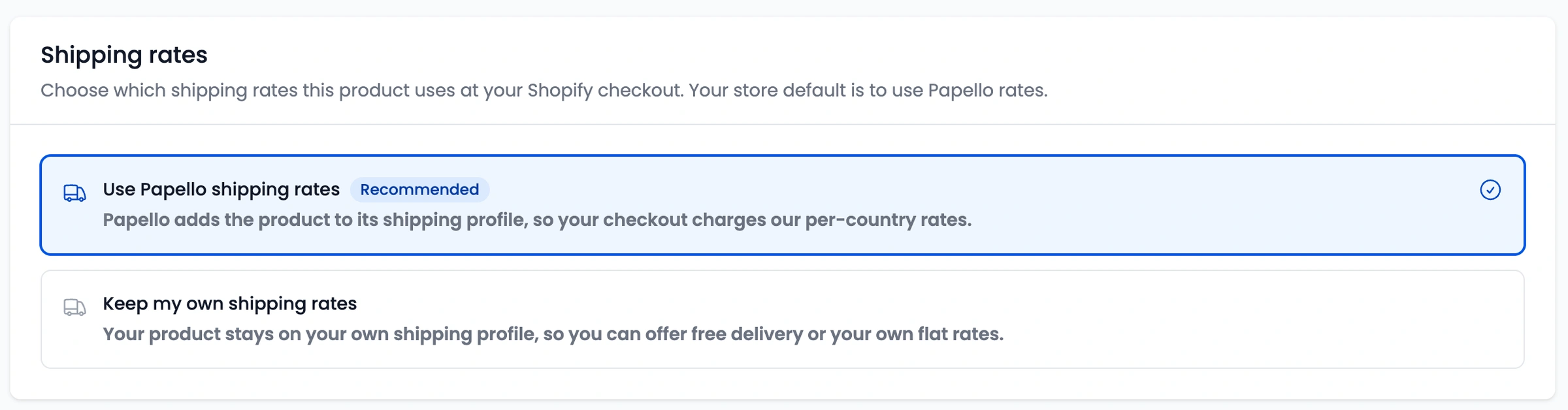
Shipping Rates: Toggle between Use Papello shipping rates (charges live Papello rates at checkout) or Keep my own shipping rates (uses your store’s existing shipping profile and flat rates).
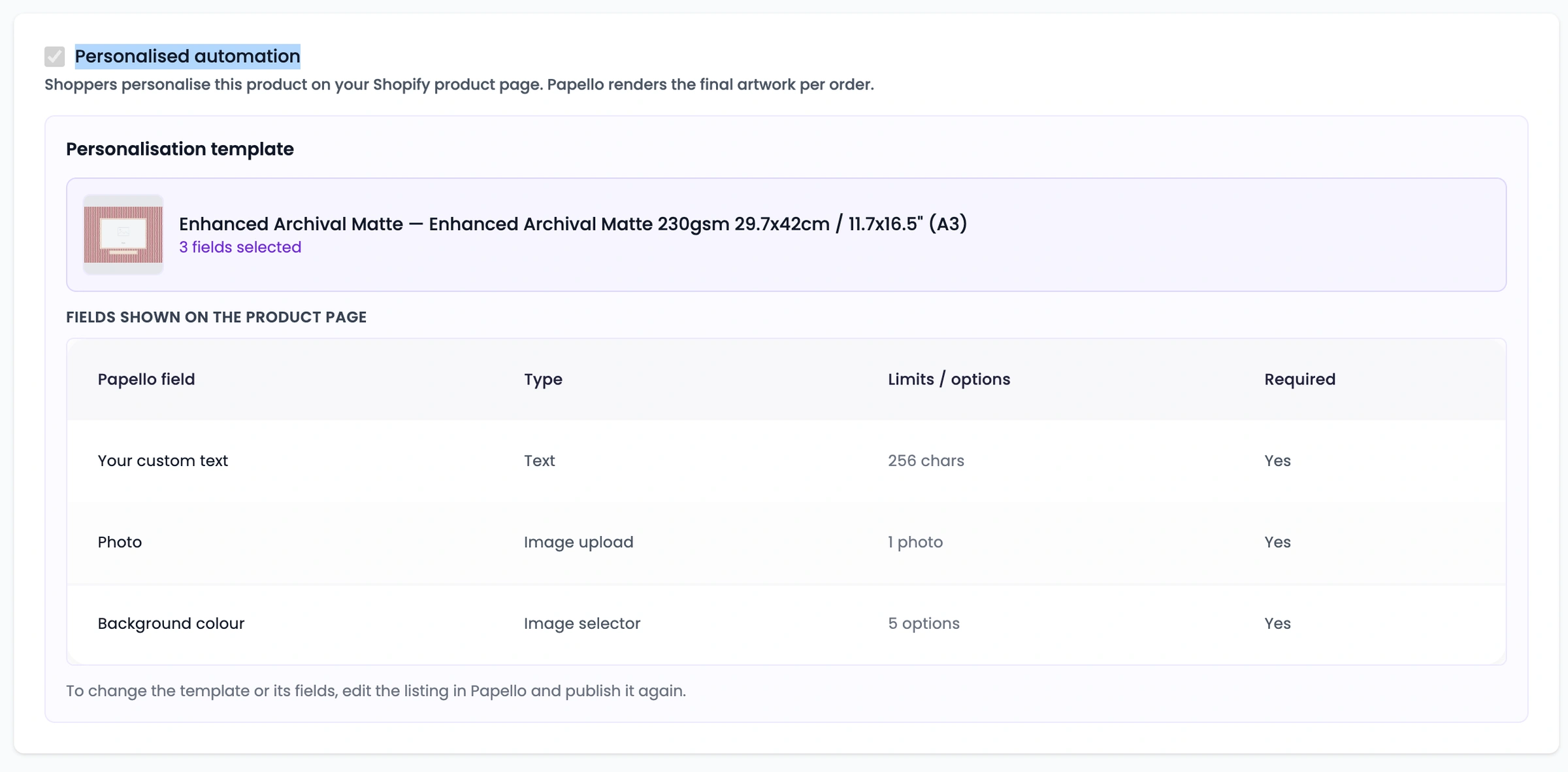
Personalised Automation: Select a different personalised design template to be rendered when an item is purchased.
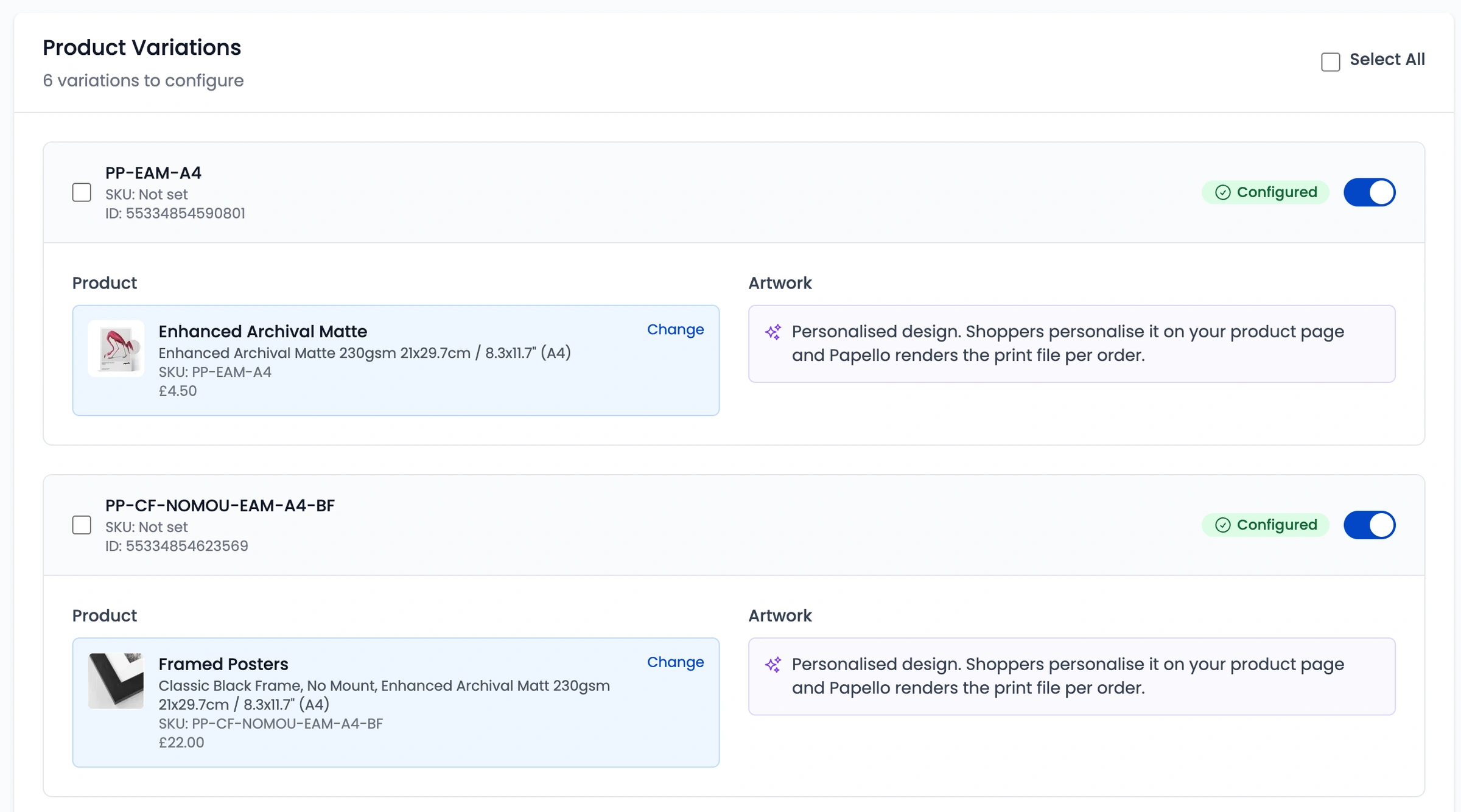
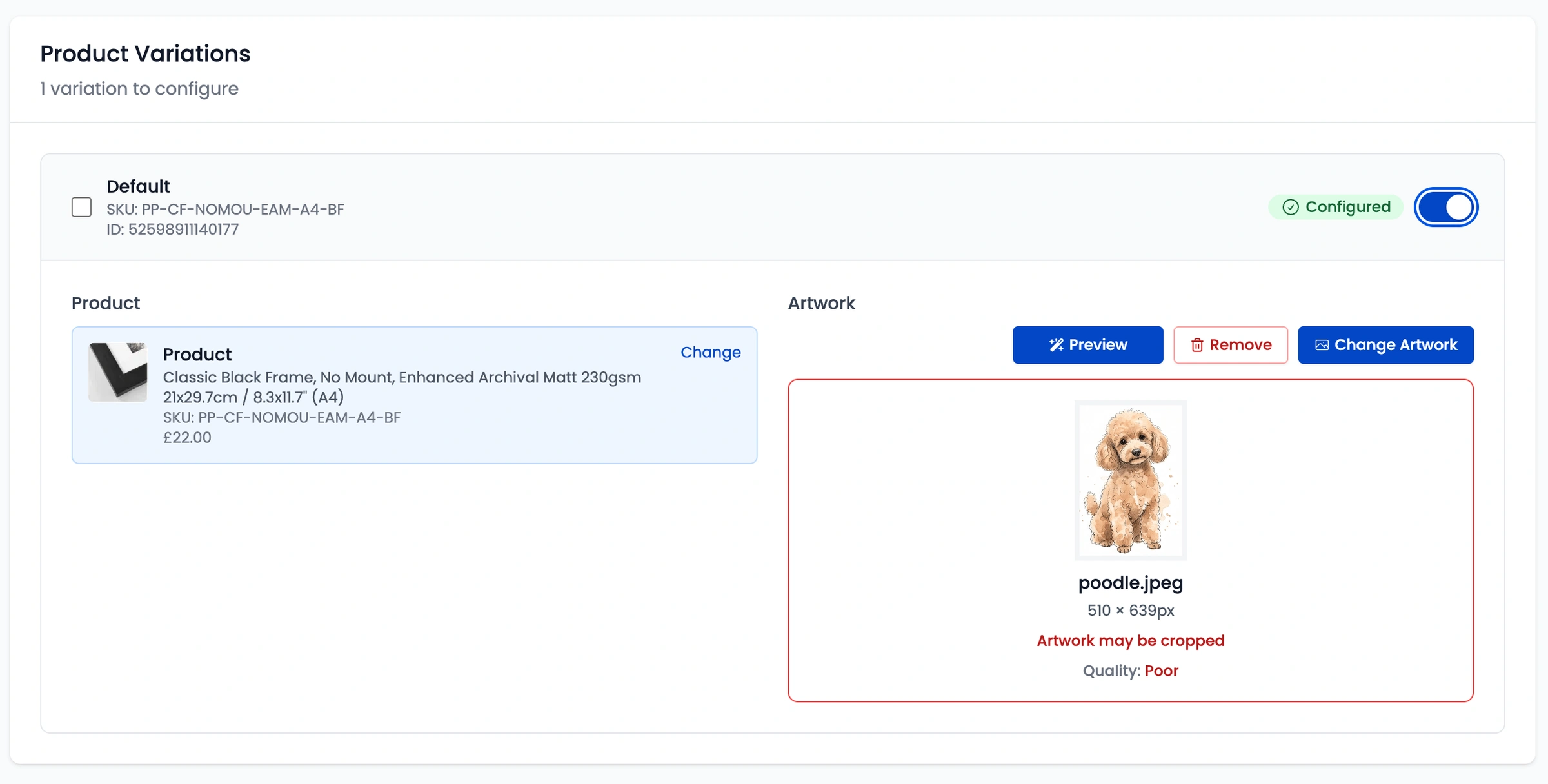
Product Variations & Artwork Mapping: Re-map individual variations to different Papello products, update assigned artwork files, or use the toggles to Enable/Disable individual variations.
Disable Automation Entirely: Turn off automation for the entire listing if you no longer want Papello to fulfil orders for that product automatically.

5. Save Configuration
Once you have made your changes, scroll to the bottom of the page and click Save Configuration to apply your updates.
