
When you connect your Shopify store to Papello, our integration automatically configures your fulfillment locations and creates a dedicated shipping profile in your Shopify admin. This ensures your store charges accurate shipping rates at checkout without manual configuration.
What Happens Automatically When You Connect Your Store
1. Papello Fulfilment Location Is Added
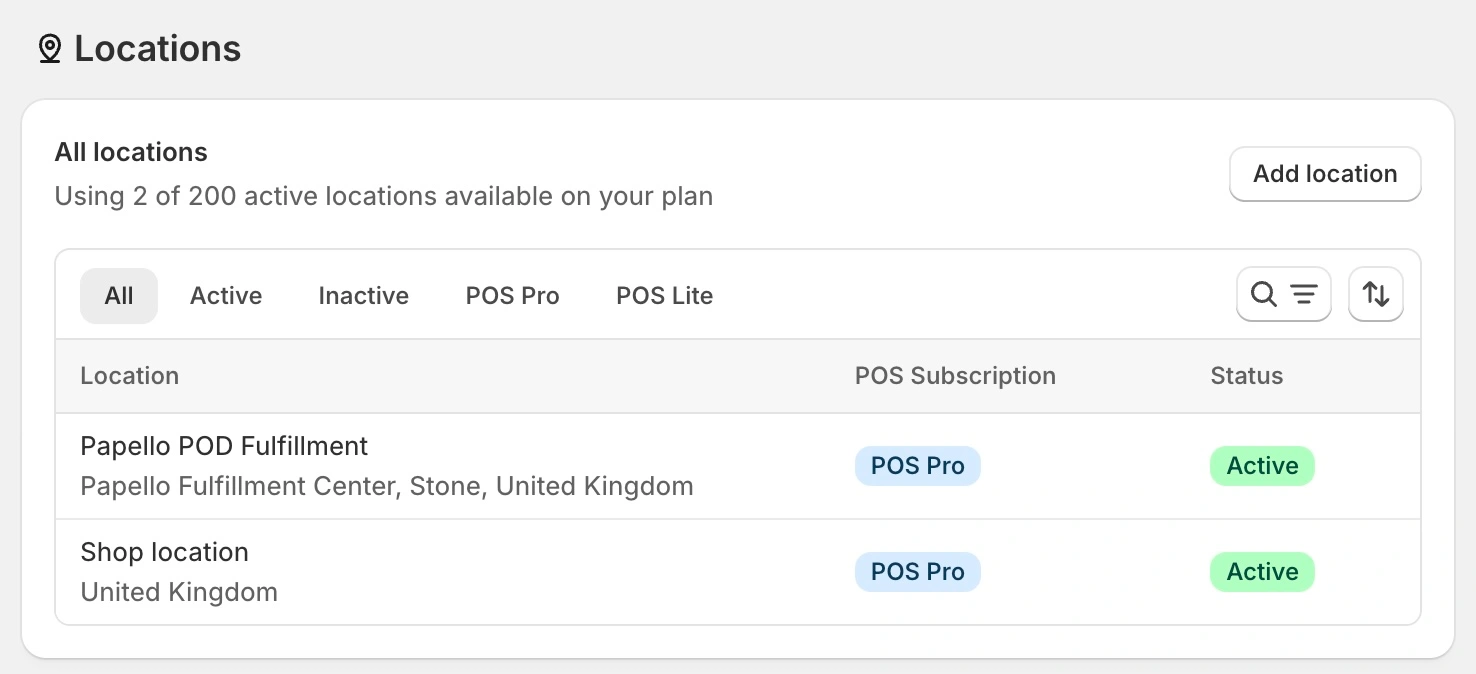
A new fulfilment location named “Papello POD Fulfilment” is added to your Shopify store.
You can view this in your Shopify admin under:
Settings → Locations
This location tells Shopify that products published from Papello will be fulfilled externally by Papello.
2. Papello App Shipping Profile Is Created
A Papello App Shipping Profile is added to your store.
You can find this in Shopify under:
Settings → Shipping and delivery
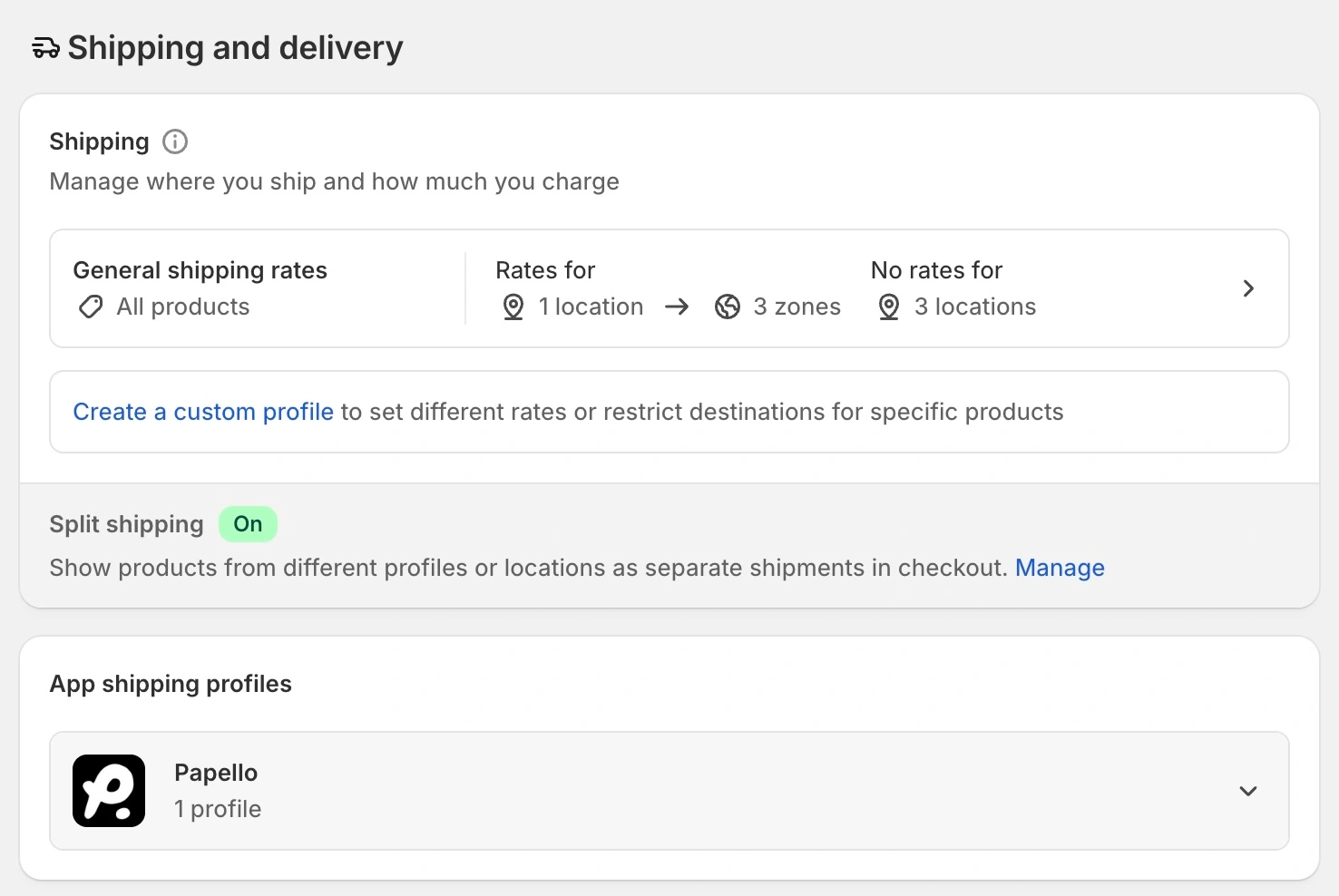
This shipping profile contains:
Shipping prices for all supported countries
Rates broken down by product weight
The actual shipping costs you’ll be charged by Papello (excluding VAT / tax)
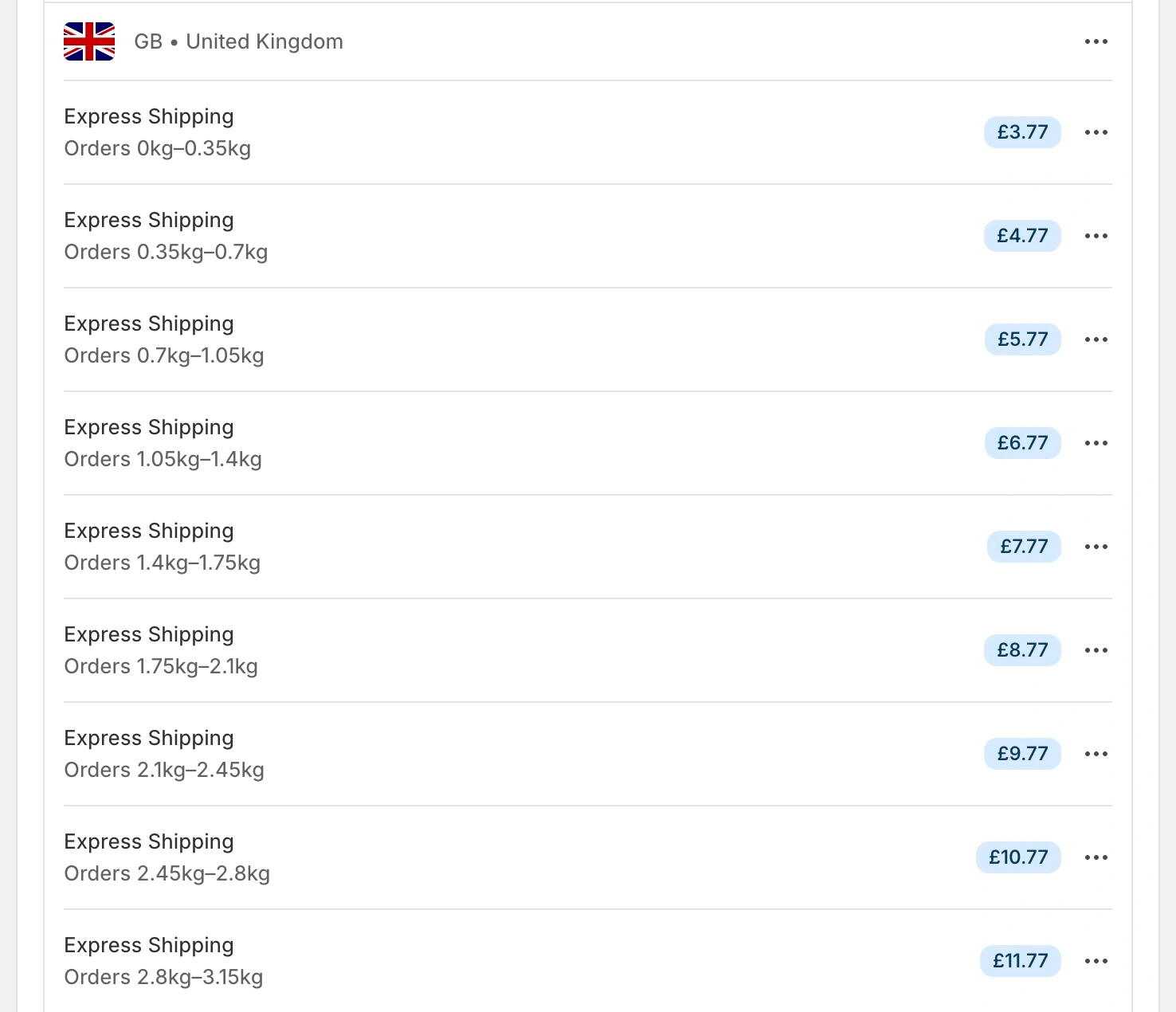
These rates are used automatically when customers check out.
Choosing Between Papello Shipping Rates and Your Own Profile
When publishing a new product listing from Papello to Shopify or setting up an automation for an existing product, you can choose how shipping is calculated:
Option A: Use Papello Shipping Rates (Recommended)
Your Shopify checkout will display live Papello shipping rates based on the customer's delivery country and product weight. This guarantees that your customer pays the exact delivery fee required to ship their order.
Option B: Use Your Own Shipping Profile
You can assign Papello products to your own custom Shopify shipping profiles. This is ideal if you want to offer Free Shipping across your store (and build the delivery cost into your retail product price) or set flat-rate delivery tiers.
How to Create Your Own Custom Shipping Profile in Shopify
If you prefer not to use the automated Papello shipping rates, follow these steps inside Shopify:
1. Log in to your Shopify Admin.
2. Navigate to Settings → Shipping and delivery.
3. In the Custom shipping rates section, click Create new profile.
4. Enter a name for your profile (e.g., Free Delivery Fine Art or Custom Flat Rates).
5. Click Add products and select the Papello products you want to manage with this profile.
6. Under Shipping zones, click Create zone, name your region (e.g., United Kingdom or Worldwide), and select the destination countries.
7. Click Add rate within your new zone to set your delivery pricing (e.g., enter £0.00 for Free Shipping or set custom flat fees).
8. Click Save in the top right corner.
Important Requirements When Using Custom Profiles
If you opt to use your own custom shipping profile:
1. Fulfillment Location: Inventory for the product variants must remain assigned to Papello POD Fulfilment so Shopify routes orders to us correctly.
2. Product Weights: The variant weights must match Papello's product specifications to ensure Shopify recognises the items as sellable and valid at checkout.
Any inventory in a different location will be moved to the “Papello” location automatically when automating an existing order, whilst still choosing your own shipping profile.