
Step 1: Create Your Design Template
Before building your listing, you must have a template ready in the Design Studio that includes at least one custom field.
If you haven't created one yet, follow our guide on How to Create a Personalised Design in the Design Studio first.
Step 2: Build the Personalised Listing
Log in to your Papello dashboard and navigate to Listings.
Click Create Listing in the top corner.
Step 2.1: Choose Product
Select the base Papello product (e.g., Fine Art Print, Framed Poster, Ceramic Mug) that your personalised design will be printed on. Select your variant options and click Continue to Artwork.
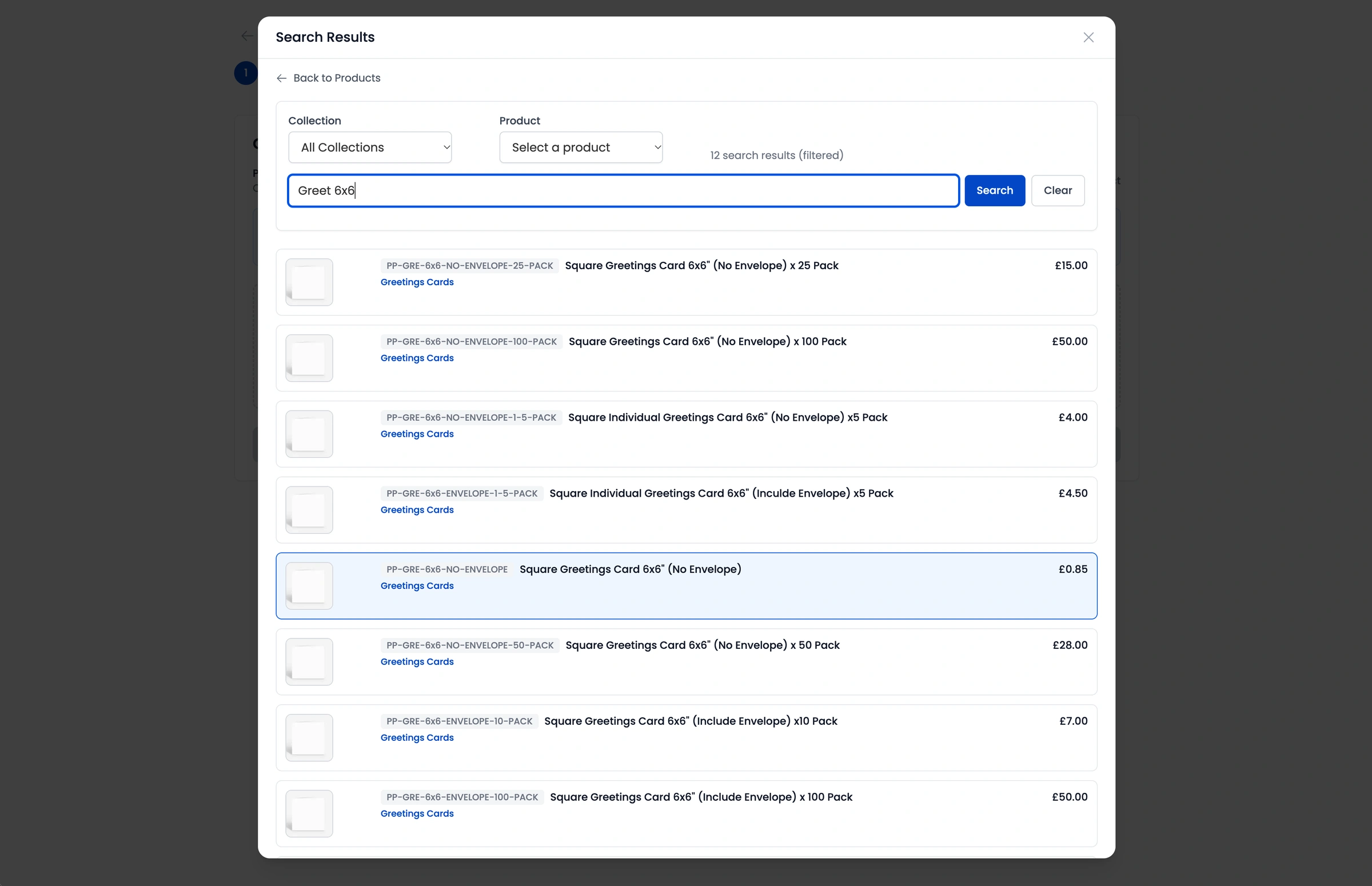
Step 2.2: Select Personalised Artwork
At the top of the artwork selection screen, you will see three listing type options:
Standard Print
Personalised
Limited Edition
Click on Personalised.
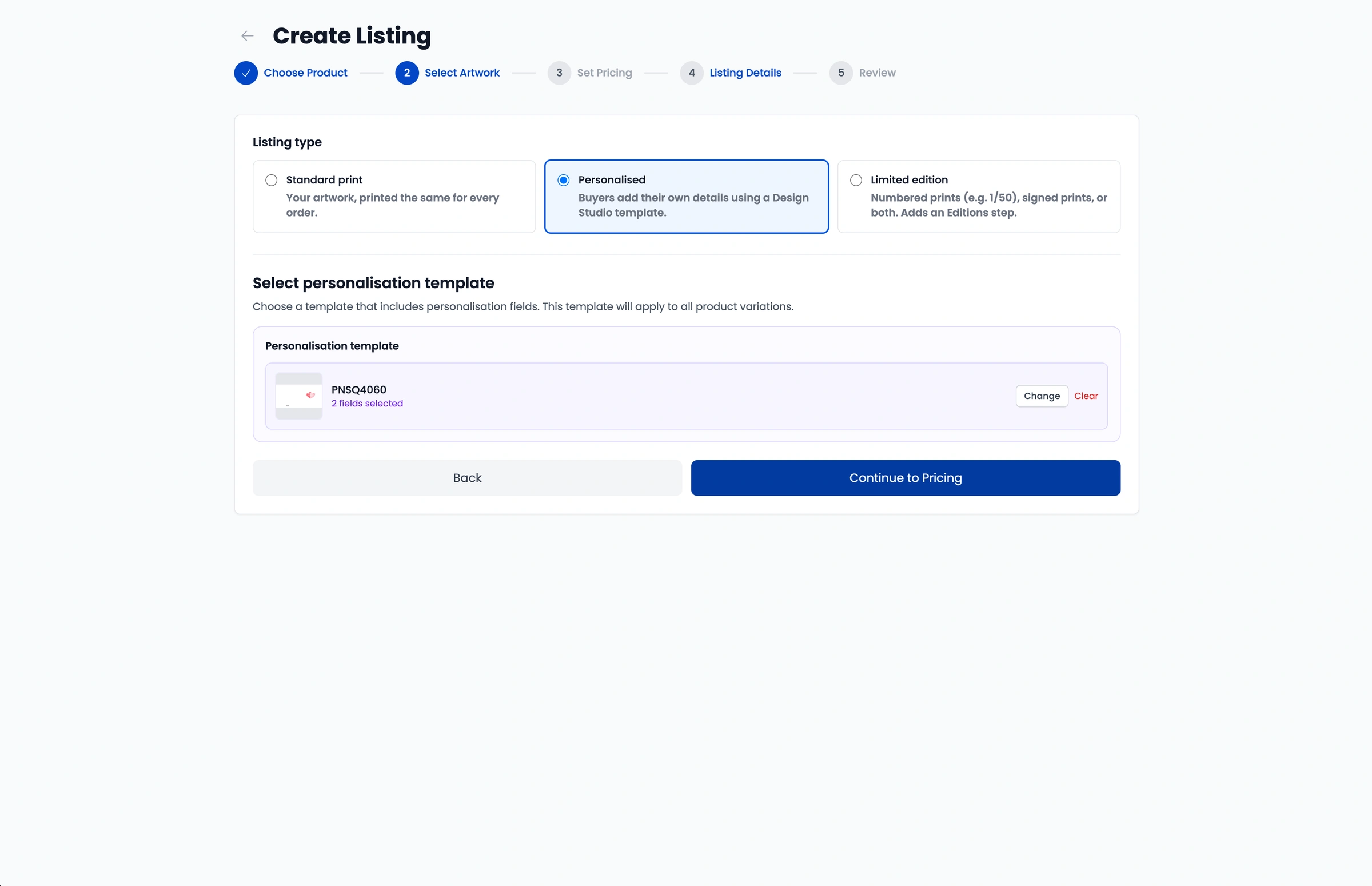
Under Select personalisation template, browse your library, locate the personalised design template you created in Step 1, and click Select.
Once selected, click Continue to Pricing.
Step 2.3: Set Pricing
Enter your retail pricing for each variant size or option.
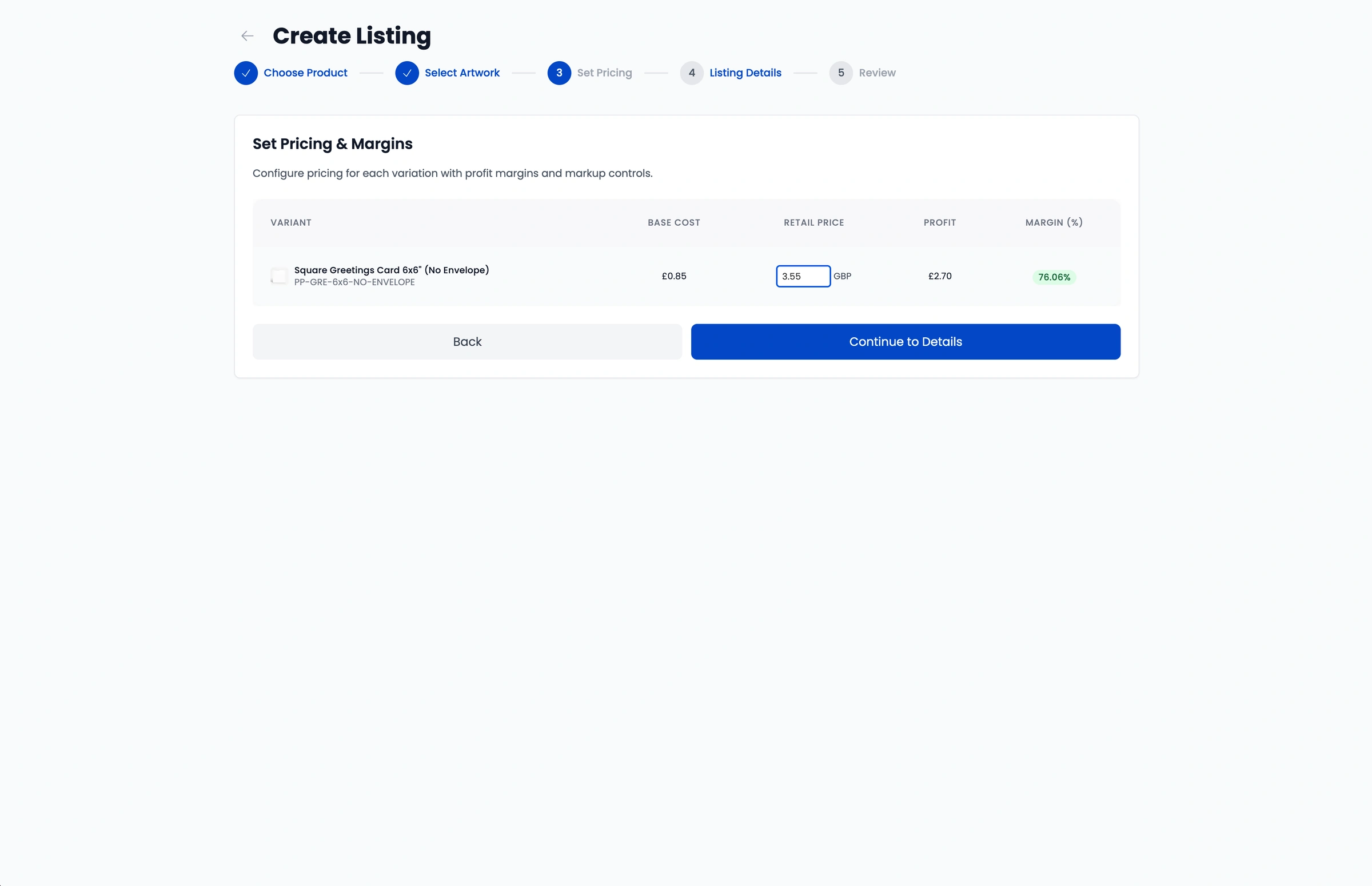
Note: By default, Papello displays base wholesale prices excluding VAT.
Step 2.4: Listing Details & Mockups
Mockups: For most products, Papello generates visual mockups automatically. You can also upload your own custom product photos or mockups at this stage.
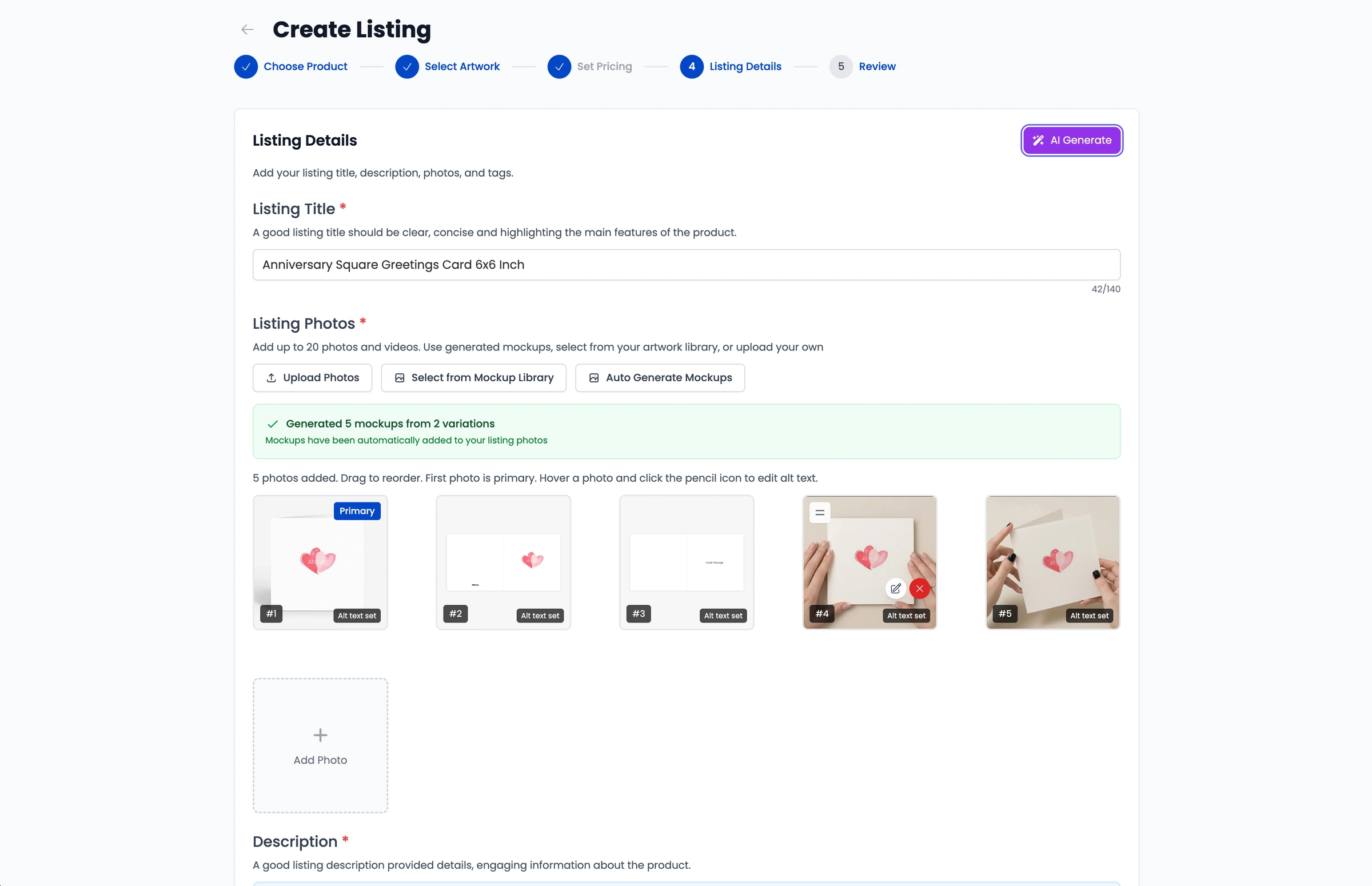
Metadata: Enter your listing Title, Tags, Image Alt Text, and Description.
AI Generation: Click AI Generate to let Papello automatically generate SEO-optimized titles, tags, and product descriptions tailored to your item.
Step 2.5: Review & Save
Review all of your listing settings, pricing margins, and artwork mappings. Click Create Listing to finish.
Next Steps: Publish to Your Store
Your personalised listing is now saved in your Papello account under My Listings. From here, you can click Publish to send the product directly to your connected store: